How to Connect Shoptank to Claude (MCP Connector)
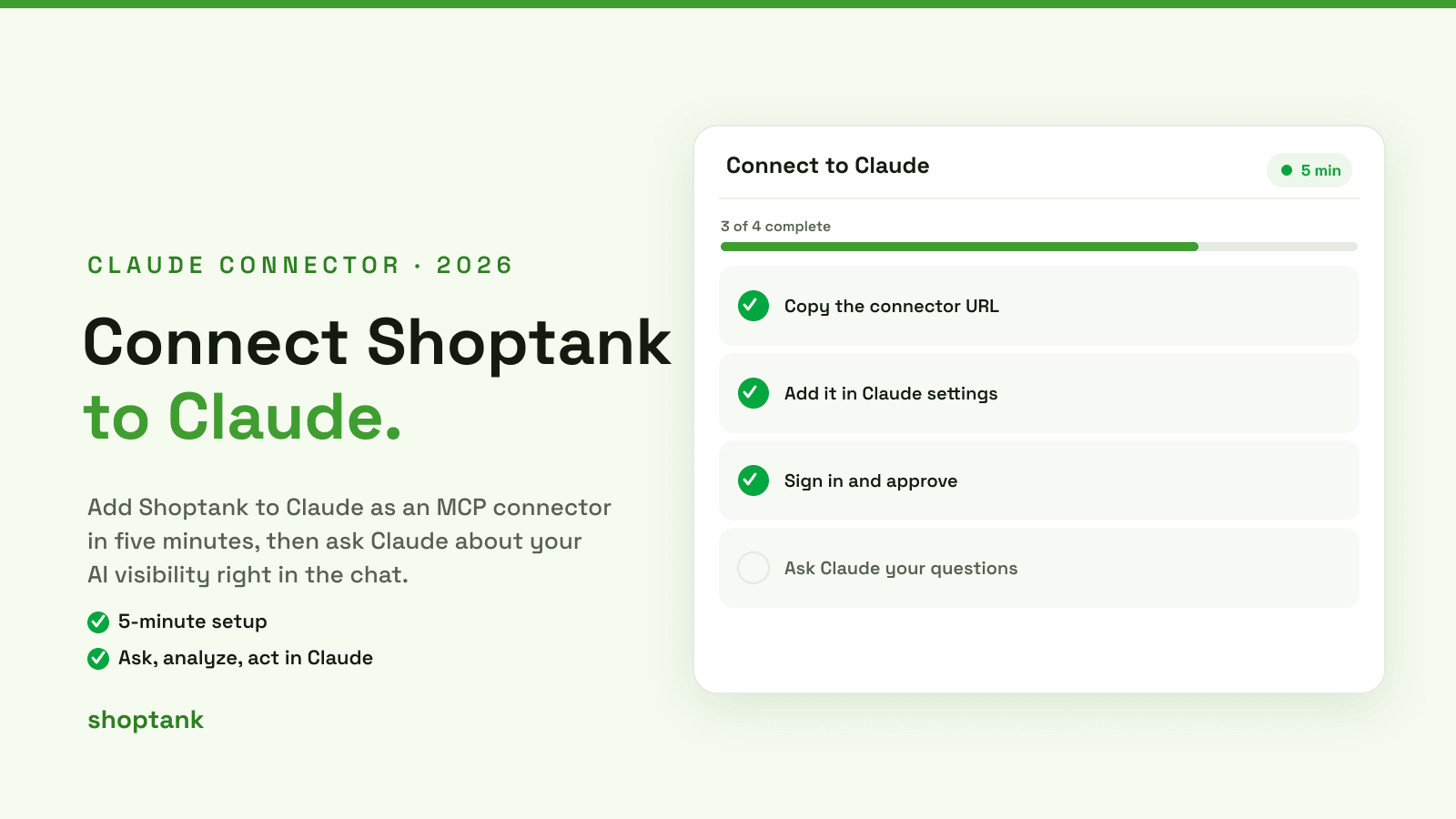
Shoptank connects to Claude as a custom MCP connector. Once it is linked, you can ask Claude where your brand shows up in AI answers, who is cited instead of you, and even start a Get cited analysis, all without leaving the chat. Setup takes about five minutes. Here is exactly how to do it.
Key takeaways
- The connector URL is https://app.shoptank.io/mcp. Copy it, add it in Claude, approve, done.
- Add it under claude.ai, Settings, Connectors, Add custom connector.
- Choose Approve and allow changes so Claude can run analyses, not just read data.
What the connector does
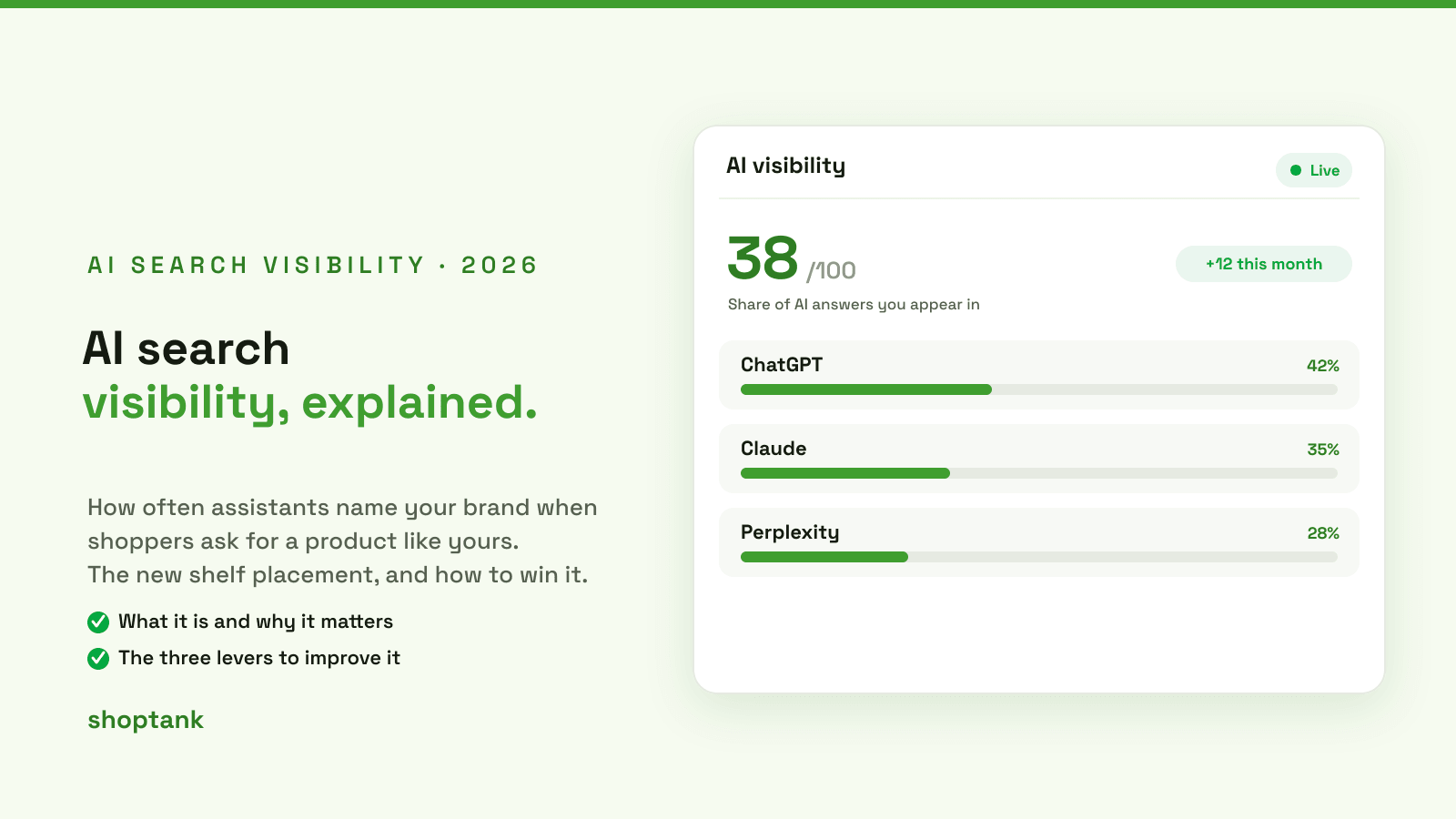
Instead of switching to a dashboard, you ask Claude in plain language. The connector lets Claude read your tracked domains and queries, see where you are cited across ChatGPT and Claude and which sources each answer used, and start a Get cited analysis for any query. You ask, Claude pulls the live data and acts on it.
Connect in four steps
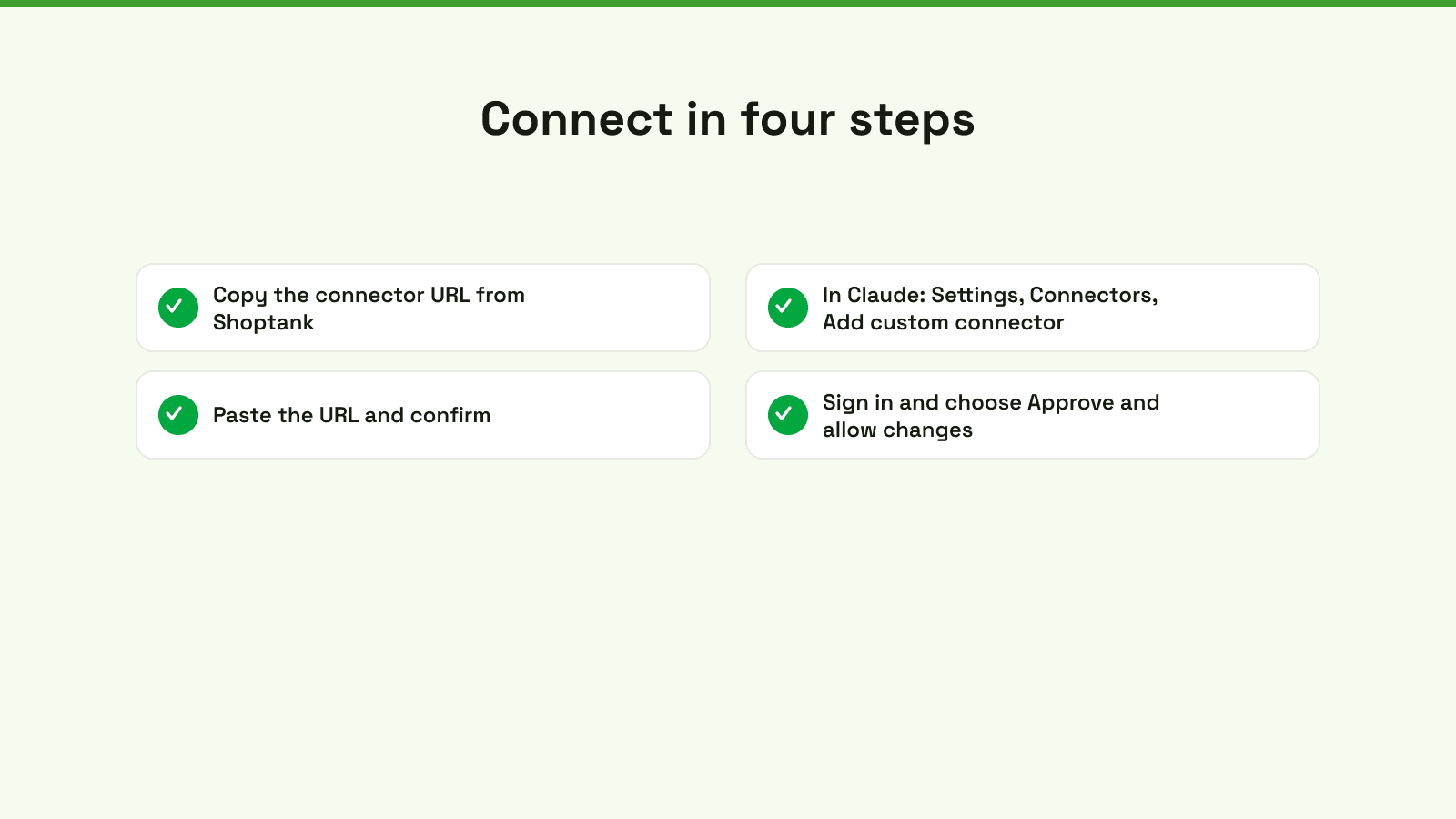
- Copy the connector URL. In Shoptank, open Connect to Claude and press Copy URL (it will say Copied). The URL is https://app.shoptank.io/mcp.
- Add it in Claude. On claude.ai, open Settings, then under Customize choose Connectors. Press Add and pick Custom connector. Name it Shoptank, paste the URL, and press Continue.
- Sign in and approve. A Solo Shoptank page asks you to sign in with your Shoptank email and password, then to choose Approve and allow changes.
- Ask Claude. Start a chat and ask a question, below.
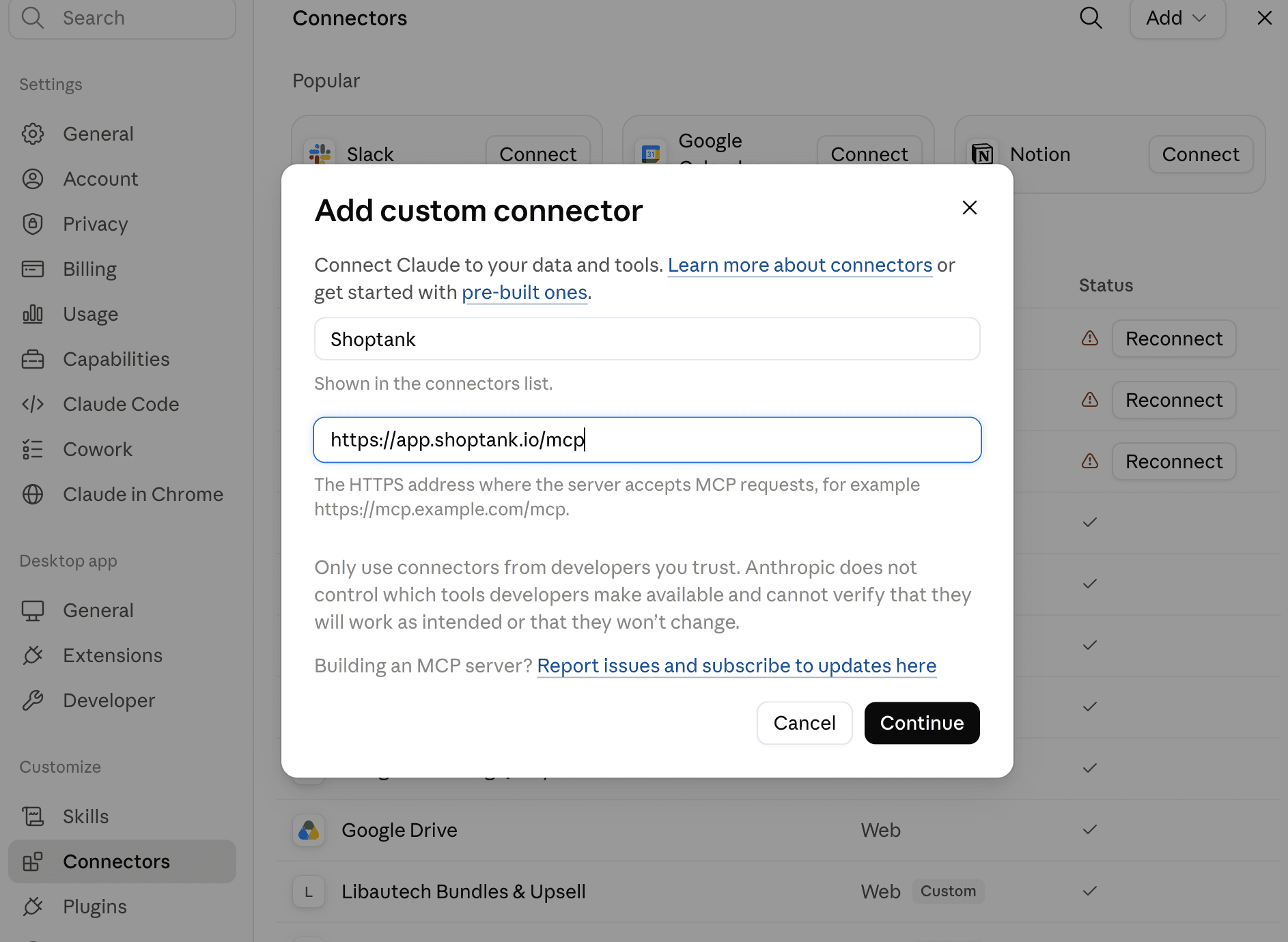
Settings, Connectors, Add, Custom connector. Name it Shoptank and paste https://app.shoptank.io/mcp.
What to ask Claude once connected
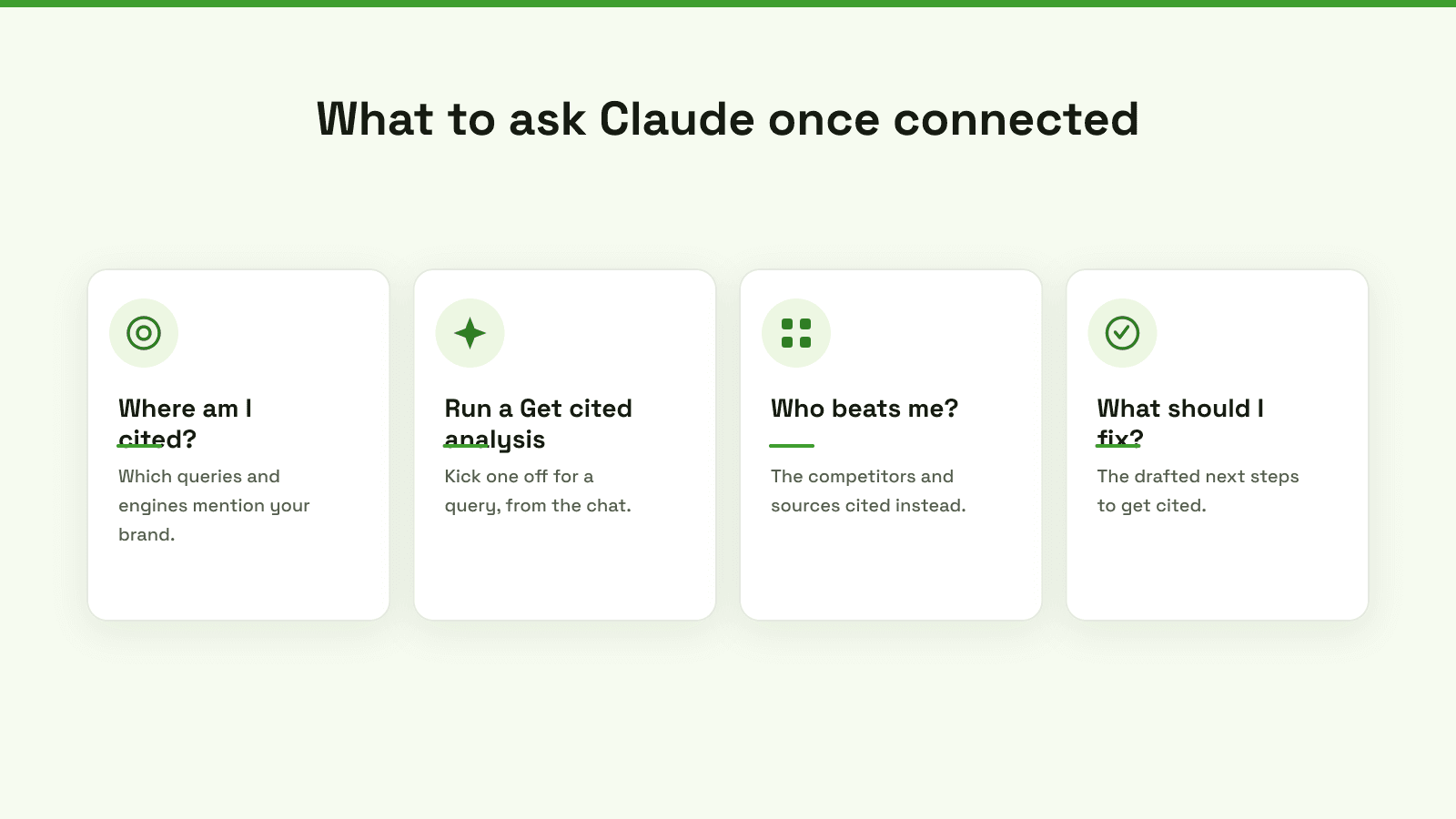
Good first prompts, in order:
- "What domains am I tracking in Shoptank, and where is [your brand] cited?"
- "Start a Get cited analysis for the query about [your topic]."
- A minute later: "Is the analysis ready?"
From there you can ask who is cited instead of you, which sources the answer used, and what to change to get cited. Claude reads the live data and runs the analysis for you.
Notes
Coverage today is ChatGPT and Claude, with more engines on the roadmap. The connector needs the Approve and allow changes permission because it can start analyses and act on your data, not only read it. It works on every plan, including the free one. To go deeper on the method behind it, see the Citation Loop and AEO and GEO for Shopify.
Five minutes to connect, and your AI visibility lives inside the assistant you already use. Copy https://app.shoptank.io/mcp and add it in Claude to start.